Stop Facebook from Auto-Refreshing: Keep Your Place in the Feed!
🛡️ Stop Facebook from Auto-Refreshing: Keep Your Place in the Feed!
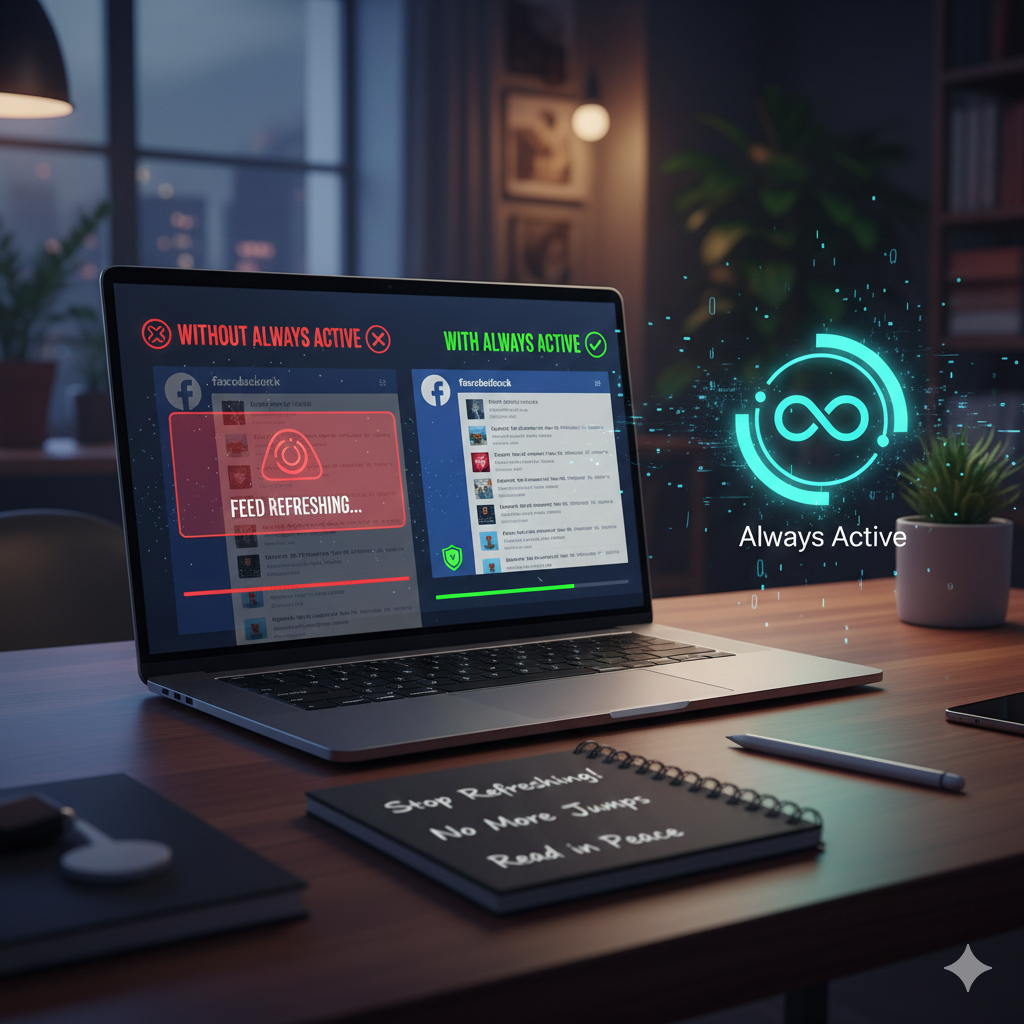
Have you ever been halfway through an interesting Facebook post, clicked away to another tab for thirty seconds, and returned only to find your feed has “jumped”? That annoying auto-refresh is a “feature” Facebook uses to show you new ads and content, but it usually just results in you losing the post you were actually interested in.
🛑 The Problem: The Infuriating Facebook “Jump”
Facebook’s desktop site is notorious for refreshing the moment it thinks you aren’t looking. This happens because:
-
-
Visibility Tracking: Facebook monitors if the tab is “active” or “hidden.”
-
-
-
Idle Timeouts: If you stay on another tab too long, the site triggers a reload the moment you click back.
-
-
-
Lost Content: Because the feed is algorithmic, once it refreshes, that specific post is often buried or gone for good.
-
⚡ The Solution: How “Always Active” Fixes It
The Always Active extension is the ultimate “cloaking device” for your browser tabs. It tricks Facebook into thinking you never left the page.
🕵️ Permanent “Visibility”
Always Active spoofs the visibilityState of your browser. Even when you are on another tab or have the window minimized, Facebook thinks it is still in the foreground.
🚫 Blocks Refresh Triggers
By pretending the tab is always active, the extension prevents the background scripts that trigger an “idle refresh” from ever starting.
📍 Stay Exactly Where You Are
Whether you leave your computer for ten minutes or switch tabs to watch a video, you can come back to Facebook and find your scroll position exactly where you left it. No jumps, no reloads, no lost posts.
📺 See the Proof in Action
If you want to see exactly how this extension stops the refresh cycle, check out this quick walkthrough video:
In the video, you’ll see how the extension maintains the “Active” status of the window, effectively disabling Facebook’s ability to force a reload when you return to the tab.
🛠️ How to Set It Up
Ready to end the refresh madness? Follow these steps:
-
-
Install the Extension: Head to your browser’s extensions and add it to your browser.
-
-
-
Enable for Facebook: Go to the extension details and select ‘Details’. Under ‘Site access’, choose ‘On specific sites’ and add facebook (https://facebook.com/).
-
-
-
Refresh Once: Give Facebook one final manual refresh (F5) to let the script take over.
-
-
-
Browse Freely: Go ahead, switch tabs, or open links in new windows. Your Facebook feed isn’t going anywhere!
-